
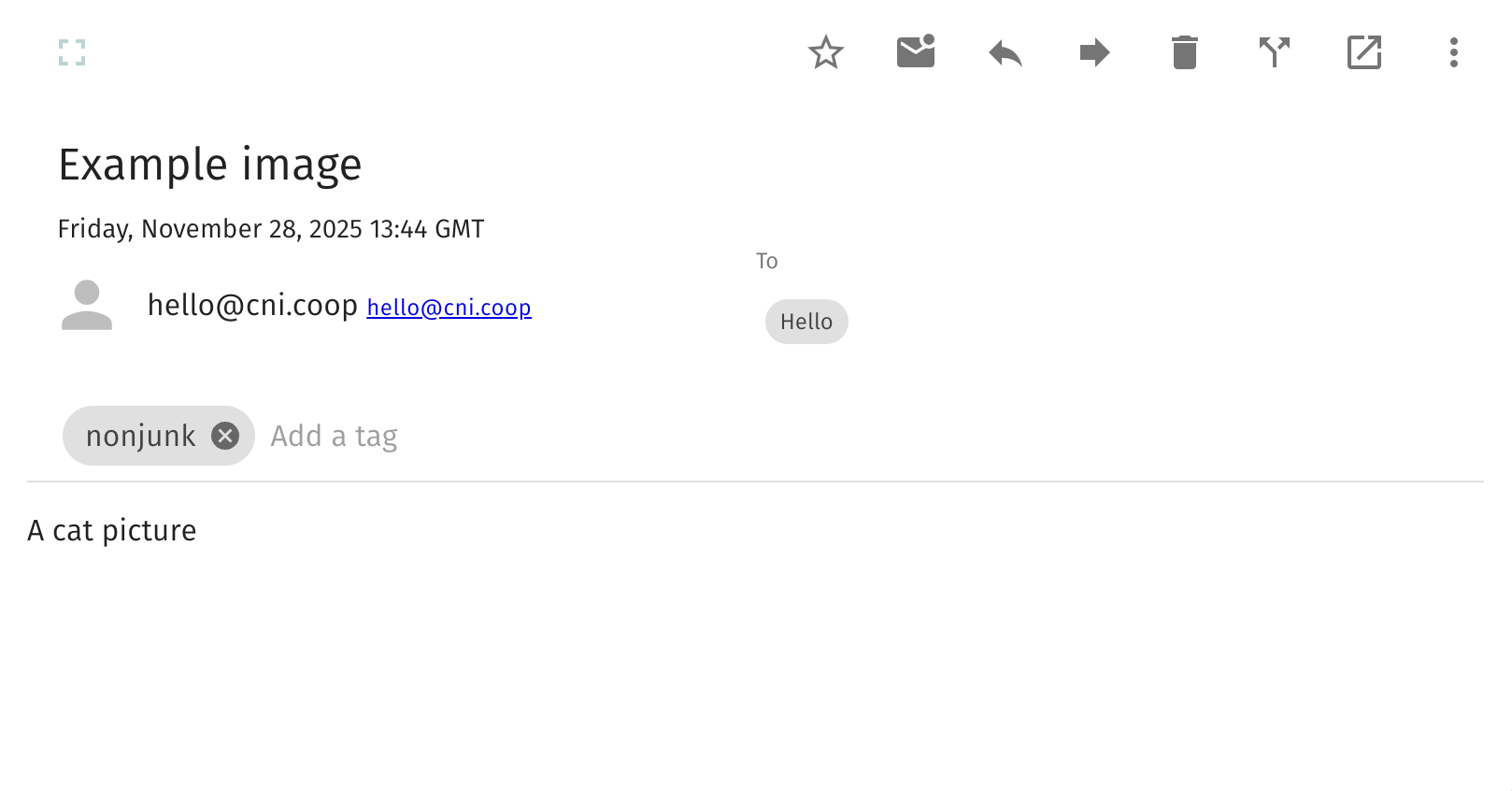
Some senders – especially people using Apple Mail on a Mac or iPhone – send photos as inline images rather than as normal attachments. Inline images are part of the message body, and SOGo hides them by default to keep the message display tidy.
If someone has emailed you photos and you only see a blank message, or notice that images are “missing”, you may simply need to change one setting in SOGo.
Step 1 – Open SOGo preferences
- Sign in to webmail at https://mail.mail.coop.
- In the top left, click the cogwheel icon.
- Select Preferences from the menu.
Step 2 – Reveal inline image attachments
- In the left-hand panel, click Mail.
- Under the General tab, scroll until you find:
Hide attachments for inline images - Untick this box.
- Click the green Save button (disk icon) in the top right.

After saving, photos and other inline images will display normally when you open the message.

Why does this happen?
Some email programs – especially Apple Mail – embed photos directly into the email body. SOGo hides these automatically unless you tell it not to. That’s why a message can appear blank even though the images are present.
Still not seeing images?
If you still have trouble, you can:
- Use the three-dots menu at the top right of the message to download attachments manually.
- Or contact us using the Contact us link at the top of the website.